
Shopify Flow is the ecommerce automation app Shopify builds and gives away. It’s a free app on the Basic, Grow, Advanced and Plus plans (opens in new tab). In the Shopify stores we build and rebuild, it’s usually installed and barely used: a couple of templates someone switched on once, while staff still tag orders and check stock by hand.
The automations we’d put in first, in order, are tagging, low-stock alerts, fraud holds, VIP routing and win-back. Tags come first because the other four workflows can branch on them. Low-stock alerts and fraud holds come next because each one catches a problem while there’s still time to act. VIP routing and win-back come last because they depend on the customer data the first three put in place.
Shopify Flow Is Free Ecommerce Automation From Basic To Plus
Is Shopify Flow only for Shopify Plus? No. Shopify Flow is a free app available on the Basic, Grow, Advanced and Plus plans (opens in new tab). Most Shopify Flow features are available across all plans, and some are accessible only to certain plans, through three gates: Grow, Advanced and Plus stores can use the Send HTTP Request action, Plus stores can use tasks created by custom partner apps, and each store gets Flow usage limits that follow the API limits of its plan.
That third gate has numbers: the GraphQL Admin API runs at 100 points per second at the standard limit, 200 on Advanced and 1,000 on Plus (opens in new tab), so a Plus store’s API budget is ten times the standard one. Flow’s usage limits follow those plan limits, but Shopify doesn’t publish a Flow-specific run quota for any plan.
Shopify lists no plan requirement for Run code (opens in new tab) or Send Admin API request (opens in new tab), which leaves two of Flow’s advanced actions outside the three gates. For B2B, Shopify Flow using B2B objects is available on all four plans (opens in new tab), though Flow’s workflow examples (opens in new tab) still carry a note limiting the B2B companies used in B2B workflows to Plus. Flow is only available in English (opens in new tab).
How Shopify Flow Works: Triggers, Conditions And Actions
Every workflow is built from three kinds of step (opens in new tab). A trigger is an event that starts a workflow, and it can be something that happens in a store or in an app. A condition is a rule that determines whether an action will be taken, and an action is a task that’s executed in a store or in an app when certain conditions are met. All workflows must start with a trigger (opens in new tab) from Shopify Flow or from an app.
In a low-stock alert, the trigger is a variant’s inventory quantity changing, the condition checks whether stock just crossed your threshold, and the action messages whoever reorders. Apps can’t extend the middle step: developers can’t create a condition task, so third-party apps plug in as triggers and actions while the branching logic stays inside Shopify Flow.
Flow runs workflows as soon as possible but doesn’t promise how fast. There’s no defined length of time that it takes a workflow to complete. Some fields in the GraphQL Admin API are populated asynchronously, particularly on orders, so fulfillments, UTM parameters and risk levels might not exist yet when a workflow reads the order.
Flow treats orders and draft orders separately, so a workflow built on order triggers doesn’t act on draft orders. Conditions on tags have a ceiling: workflows that contain conditions that involve tags might not work if there are more than 250 tags associated with the order, product or customer.
Flow is a client of Shopify’s Admin API. It evaluates conditions and takes actions on API version 2026-01 (opens in new tab), and because Shopify releases new API versions every 3 months, some workflows might need to be updated when fields are changed or deprecated. A March 24, 2026 update (opens in new tab) made nearly all Admin API fields available natively in Flow, including fields that take arguments.
Shopify Flow Automation Features Past The Basics
Beyond the three core step types, Flow has utility steps. Scheduled workflows run on a timer instead of waiting for a store event. Get data (opens in new tab) pulls lists of records into a workflow, For each loops over a list, and Count and Sum aggregate one. Wait steps are capped at 40 (opens in new tab).
| Step | What it does | Ceiling |
|---|---|---|
| Scheduled time (opens in new tab) trigger | Starts a workflow at a set time or on a repeating schedule, with no store data attached | At most once every 10 minutes; at most one year between runs |
| Get data (opens in new tab) | Pulls a filtered list of store records into the workflow | Lists up to 100 items |
| For each (opens in new tab) | Runs steps once for each item in a list | Lists up to 1,000 items |
| Wait (opens in new tab) | Pauses the workflow, then re-reads store data | 90 days total per workflow; 40 wait steps |
| Run code (opens in new tab) | Executes JavaScript over workflow data | 5 seconds, 10MB of memory, 50,000 characters of code |
| Send HTTP request (opens in new tab) | Calls an outside endpoint and returns the response to the workflow | Waits up to 30 seconds for a response; optional retries for up to 24 hours |
| Send Admin API request (opens in new tab) | Runs a GraphQL Admin API mutation | Mutations only, no queries |
When a wait ends, Flow re-reads store data (opens in new tab) instead of acting on what it saw at the trigger. A customer’s refund during the wait can flip the result of a spend-tier condition. Editing an active workflow changes what its waiting runs do, and deactivating or deleting it cancels them. For anything longer than 90 days, Shopify recommends a scheduled workflow with a Get data action.
Shopify keeps adding to what Get data can reach. The March 19, 2026 update (opens in new tab) added markets and articles, and the March 24, 2026 update (opens in new tab) added workflow runs, abandoned checkouts, inventory items, catalogs and pages, each returning up to 100 resources. A May 9, 2026 update (opens in new tab) added a Get analytics data action that runs ShopifyQL inside a workflow and returns the results as variables.
Using Liquid In Shopify Flow
Flow’s text fields accept Liquid, the template language Shopify themes use, but in a different dialect. Flow uses a variant of Liquid that most closely follows the open source library (opens in new tab), while theme Liquid uses a different syntax for variables and includes many more filters and tags than Flow supports. A snippet copied from a theme file won’t necessarily run in a workflow.
Flow supports the conditional tags if, unless, elsif/else, case/when and and/or, the iteration tags for, cycle and tablerow, and all of the open source Liquid filters. It adds its own filters: date_minus and date_plus for date math, blake3, sha256, sha1 and md5 for hashing, and hmac_sha256 and hmac_sha1 for signing. Shopify recommends blake3 for new work and keeps the other three hashes for compatibility with third-party systems. The SHA, MD5 and HMAC filters shipped on September 12, 2025 (opens in new tab).
Flow’s Liquid leaves some things out. It doesn’t support the dot notation that’s available for some filters, dot notation for metafields, or using indexes to access items in a list. You also can’t print a list or object by calling it directly, so the workaround is a for loop that picks out the fields you need. For mutation input in Send Admin API request (opens in new tab), Flow supports a json Liquid filter.
Secrets use Liquid too. Send HTTP request (opens in new tab) references credentials as {{secrets.handle}}, and secret values are never visible in the Flow interface and are redacted from the workflow run logs. If variable paths slow your team down, you can ask Sidekick to write the Liquid for a step instead of tracing the variable path yourself.
The Shopify Flow Templates We'd Build First
Shopify’s template library (opens in new tab) provides hundreds of examples that demonstrate how to use Flow, and Shopify sorts a sample of them into 13 categories, from B2B and Customer through Risk and Connector apps. The search is semantic: describe what you want to automate, and any relevant templates that match your description display as search results.
Templates ship with placeholder data (opens in new tab), such as tags and email recipients, that you’ll need to edit before activating, and many need a connector app installed. Our rule is that a template stays inactive until someone has read every step and replaced every placeholder.
Returns have their own triggers, added in Shopify’s August 16, 2024 update (opens in new tab), and templates such as “Cancel inactive returns (opens in new tab).” How those fit into a full returns process is covered in our guide to ecommerce returns management on Shopify.
Tagging Orders And Customers
Tags are the simplest automation in Flow, and the other four workflows here read them. Flow has add and remove tag actions (opens in new tab) for customers, orders, draft orders and products. Its triggers (opens in new tab) include Customer tags added and Customer tags removed, so a tag written by one workflow can start another.
For customers, we’d start from “Organize customers by lifetime spend tiers,” “Organize customers by order count tiers” and “Track and reward customers based on lifetime spend,” all of which Shopify lists for its Add customer tags (opens in new tab) action. For orders, Shopify’s template examples (opens in new tab) and the templates it lists for Run code (opens in new tab) include “Tag orders by their shipping method,” “Tag orders paid with gift card” and “Tag orders with associated UTM campaign.” UTM parameters populate asynchronously, so test the UTM workflow against real orders before anyone builds a report on its tags.
A store that tags every campaign, channel and promotion can push a customer record past the 250-tag condition ceiling, and tag conditions on that record may then stop working.
Low-Stock Alerts That Don't Fire On Every Sale
Shopify sends merchants to Flow for low-stock alerts. If you need to receive direct notifications of low stock levels (opens in new tab), you either install an inventory alert app from the Shopify App Store or use Shopify Flow to set up low stock notifications. For merchants transitioning from Stocky (opens in new tab), Shopify’s advice is to set up automated low-stock alerts using Shopify Flow so you can react before items run out.
The trigger is Product variant inventory quantity changed (opens in new tab), which fires even when inventory tracking is off. When you create this type of workflow, the condition needs to check both the amounts before and after the inventory changes (opens in new tab). If the condition checks only the current quantity, every sale below the threshold sends another alert.
For multi-location stores, per-location stock comes from productVariant / inventoryItem / inventoryLevels / available, so a condition can alert on the location that ships instead of the store total. Start from “Get notified when product inventory is low,” “Send weekly email summary with list of low stock variants” or “Merchandise low stock products and hide when out of stock.” Shopify added triggers for inventory transfers on April 30, 2026 (opens in new tab).
Setting thresholds per location is inventory work, and our Shopify inventory management guide covers that side. This trigger runs on every inventory change in the store and is Shopify’s own example of a high-volume trigger.
Shopify Flow Examples: Fraud Holds, VIPs And Win-Back
Fraud Holds On The Order Risk Analyzed Trigger
Build fraud workflows on the Order risk analyzed trigger, not Order created. Shopify recommends this because risk level populates asynchronously (opens in new tab), so an Order created workflow can read the order before its risk result exists. Workflows that start with Order risk analyzed (opens in new tab) don’t run immediately after an order is created.
Does Shopify Flow read third-party fraud scores? Not through this trigger. This trigger is only invoked for Shopify risk assessments and not for third-party assessments, and risk results from third-party apps (opens in new tab) aren’t used. Build your Flow fraud logic on Shopify’s own assessment, and treat any third-party fraud app as a separate system.
Your payment capture setting decides what Flow can do with a risky order. A store on manual capture can have a workflow capture only low- and medium-risk orders. With automatic capture and manual fulfillment, a workflow can cancel a risky order, but you can’t prevent the payment from being captured in this case.
Hold fulfillment order (opens in new tab) places a hold on each fulfillment order, with a reason, notes and an optional merchant notification. Cancel order (opens in new tab) cancels the order that triggers the workflow and voids the authorization, with options to refund, restock and notify. A deprecated version of that action doesn’t void the authorization, so check which version an older workflow uses.
Our default is hold and notify, not auto-cancel. A hold keeps a person in the decision, while a cancel acts on Shopify’s risk level alone. Shopify’s templates cover both approaches: “Get notified about high risk orders before capturing payment,” “Request or hold fulfillments based on selected criteria,” “Capture payment if order is not high fraud risk” and “Cancel high-risk orders.”
If you run your own fraud analysis, the Create order risk assessment (opens in new tab) action displays it on the order, and a risk assessment this action creates won’t cause Flow’s Order risk analyzed trigger to run again. If Flow captures your payments (opens in new tab), an Order created workflow might miss an authorization from an order edit or a post-purchase upsell, and Shopify points to Order transaction created instead. Shopify added a Dispute created trigger for Shopify Payments chargebacks and inquiries on October 2, 2025 (opens in new tab).
VIP Routing From Customer Segments
VIP routing starts with a customer segment you define in Shopify and the Customer joined segment (opens in new tab) trigger, which fires when a customer enters the segment you pick. Shopify lists customer tag, metafield and note actions as its follow-ups. Shopify’s “Welcome VIP customers” template sends high value customers a marketing email once they join the VIP customers segment, and it requires a VIP customers segment.
When a workflow needs to know whether someone is still in a segment, the Look up customer in segment (opens in new tab) action checks membership from inside a running workflow.
A VIP tag can also route work to people. Gorgias’s Flow action, Create a ticket (opens in new tab), creates a ticket containing a single internal note in Gorgias, so a workflow can put a VIP’s order in front of your support team. If routing is part of a larger question about support spend, our breakdown of reducing customer support costs with AI covers the helpdesk side.
Win-Back When Klaviyo Does The Sending
Shopify’s “Win back customers” template gives a discount to customers who haven’t ordered in the last 60 days, and it needs a winback segment (opens in new tab) to exist first. Can Shopify Flow send marketing emails? Yes. A number of workflows integrate with Shopify Messaging (opens in new tab) to send branded marketing emails, and Shopify Messaging marketing automation emails count toward your 10,000 free emails per calendar month.
Most of the Shopify stores we build send email through Klaviyo, which changes the split of work. Flow notices a Shopify-side change and hands it to Klaviyo, and Klaviyo handles the send.
The handoff is the Klaviyo connector’s Track an event (opens in new tab) action, which pushes an event to Klaviyo. Shopify still shows a Create a Campaign action for the connector, but Klaviyo retired the Create a campaign action on October 16th, 2025 (opens in new tab). Klaviyo recommends Track an event in its place, with the event triggering a Klaviyo flow or defining a segment. Klaviyo owns the action, so we build to Klaviyo’s version.
In practice the win-back has two halves. On the Shopify side, you build a winback segment and a Flow workflow on Customer joined segment that tags the customer or tracks an event in Klaviyo. On the Klaviyo side, a flow triggered by that event decides what to send, when, and whether a discount goes in. The connector’s Customer Properties and Event Properties boxes must hold valid JSON, so check those first when events don’t arrive.
Shopify Flow App Connectors And Third-Party Actions
Connectors (opens in new tab) are how the rest of your stack plugs into Flow. They let you use specific apps to create triggers based on information from the app, or to create an action that uses an app. Shopify lists 91 apps that work with Shopify Flow (opens in new tab).
For a DTC stack, the review, loyalty and messaging connectors are where most of the value sits. Okendo has an Okendo Review Created trigger, Yotpo Product Reviews & Photos has New Yotpo review and Yotpo review updated, Loox has New review, and Stamped Product Reviews & UGC has triggers for new reviews, NPS and questions.
On the action side, Yotpo Loyalty & Rewards has Reward Points, Smile has Send Smile activity, SMSBump by Yotpo has Send SMS via SMSBump, and Omnisend has Track an event and Create or update the customer. Combined with the Gorgias action above, a review trigger can put new reviews in front of your support team as internal-note tickets.
Partner templates show up whether or not you’ve installed the app: merchants can discover an app’s templates or tasks in Flow (opens in new tab) even if they don’t have the app installed. Klaviyo (opens in new tab) and Gorgias (opens in new tab) both name Shopify Flow among the apps they work with.
Automation apps have connectors too, including Mechanic, MESA and Arigato Automation. Mechanic’s connector, for example, adds four triggers for data Mechanic sends (customer, general, order and product) and a Send event to Mechanic action.
The Generate text connector runs on an older OpenAI interface: Shopify Flow calls the legacy OpenAI completions API (opens in new tab) to generate text.
Building Shopify Flow Workflows With Sidekick
Sidekick, the AI assistant in the Shopify admin, can create a Flow workflow from a description (opens in new tab) of the workflow that you want. On December 11, 2025 (opens in new tab), Shopify said Sidekick works well for customer and order tagging, email and Slack notifications, inventory alerts and scheduled automations.
That list covers tagging and low-stock alerts, the first two automations here. Sidekick-built workflows with advanced Liquid or custom code may require manual editing. Sidekick workflow generation is available on Basic through Plus.
Sidekick-built workflows come with four considerations. The first two:
You must be using a desktop device to generate workflows using Sidekick. Workflows generated by Sidekick are Inactive by default. You must manually turn on the workflow generated by Sidekick to use it.
The third is that workflows generated by Sidekick are automatically tagged with sidekick. The fourth is that you should thoroughly review and test the generated workflow to ensure that it’s functional and complete, because Sidekick might omit business-specific logic in complex workflows that you need to refine before using the workflow.
Inactive by default is the design we’d build a review process around anyway. The sidekick tag makes those workflows easy to filter for review, and changes Sidekick proposes to an existing workflow wait until you choose Apply changes or Discard changes.
Test the draft before activating it. Shopify added test runs (opens in new tab) on December 11, 2025 and says they’re quick, about 10 seconds, and isolated from your live store. Actions that change things outside the run, like tags and emails, don’t execute, while Run code, Count and Sum do. Since a May 14, 2026 update (opens in new tab), Sidekick can generate test events from real shop data, which are simulated events (opens in new tab), for example one that passes the condition and one that fails.
After activation, audit it. Version history (opens in new tab), added May 5, 2026, logs edits, activations and deactivations with the staff member and timestamp, and it marks changes made by Sidekick (opens in new tab). Sidekick can also fix a workflow that won’t save (opens in new tab) and make optimization fixes (opens in new tab) such as adding query filters to Get data or inserting a Wait step.
Our sequence for any Sidekick-drafted workflow is to describe it, let Sidekick draft it inactive, have a person read every step and add the business logic Sidekick left out, run a passing and a failing test case, and then activate with an error alert in place. Sidekick drafting workflows is one narrow part of AI in Shopify operations. For the wider view, see our guide to agentic commerce on Shopify.
Shopify Flow At Black Friday Volume
Shopify markets Flow (opens in new tab) as an app that “handles all the strains and pressures of huge sales like Black Friday Cyber Monday.” The figure Shopify sets beside it, “562M Workflows ran during Black Friday Cyber Monday,” gives no year and no per-store number, so plan around Flow’s limits instead.
The limits that apply at peak are these: no defined completion time for a run, order fields like risk and UTM data that populate asynchronously, usage limits tied to your plan’s API budget, and a warning from Shopify (opens in new tab) when your store has more than 10 active workflows using the same trigger.
Run volume multiplies every fetch (opens in new tab): if a workflow fetches 100 products and runs 1000 times per minute, it’s fetching 100,000 products per minute. Shopify’s example of a high-volume trigger is Product variant inventory quantity changed, which runs for every inventory change in a shop. Every unit sold changes a variant’s inventory, so the low-stock workflow above runs most often when order volume is highest.
When workflows use too much, Flow throttles them. Flow will intentionally limit the execution of runs on your store, which might cause delays and timeout errors, and a GraphQL throttled error can affect other workflows when they attempt to run. A heavy inventory workflow can therefore delay the fraud hold that shares the store’s budget.
Of Shopify’s optimization fixes, we’d apply these four ahead of peak: combine workflows that share a trigger, put query filters on every Get data action, use metafield rather than metafields, and put a condition and a wait ahead of heavy data fetches so Flow only queries when the condition passes. Flow also fetches a field reused across steps one time, so consolidating workflows doesn’t mean fetching the same data twice.
Set up alerting before the traffic arrives. The Workflow error occurred (opens in new tab) trigger has Shopify templates for email, Slack and Shopify-alert notifications, and it runs only once per workflow version within 30 days, so a workflow that keeps failing sends one alert until it’s edited or 30 days pass. For a heartbeat, Shopify’s Scheduled time (opens in new tab) template “Send a notification when Order volume is less than 10 in last hour” is an order heartbeat notification, and a scheduled workflow can run as often as every 10 minutes.
Run search covers the last 14 days of workflow runs (opens in new tab), and manual runs (opens in new tab) cap at 50 orders, draft orders, customers or products. That makes backfilling a broken workflow’s missed orders a batch job. Since October 29, 2025 (opens in new tab), you can cancel in-progress runs, and runs retry automatically for up to 36 hours after a transient error.
Our Shopify Black Friday 2026 readiness checklist schedules automation wiring ahead of a full rehearsal. Have your first Flow workflows built and tested before then, so the weeks before peak go to consolidation and load rather than first drafts.
Where Shopify Flow Ends And Custom Code Begins
Can Shopify Flow call an external API? On Grow, Advanced and Plus, yes: Send HTTP request (opens in new tab) is only available to the Shopify Plus, Advanced or Grow plans. Where it’s available, it waits up to 30 seconds for a response and returns that response to the workflow, where Shopify suggests parsing it with Run code. A Basic store that needs an outside call has to go through a connector app or move to a higher plan.
Custom triggers and actions from your own app are the next boundary. Tasks from custom partner apps are Plus-only: a custom app’s Flow app extensions are available only to a Shopify Plus store (opens in new tab) that has the app installed. An Advanced store that wants a bespoke trigger from its own custom app runs into that gate. The gate applies to custom apps, and Shopify lists no plan requirement for the public connectors above.
Code that needs the outside world is the third boundary. Run code (opens in new tab) is sandboxed: it supports ECMA2020 JavaScript but not the NodeJS or CommonJS APIs or importing modules, your code can’t make HTTP calls (fetch), and random and clock-based functions can’t be used. Execution is capped at 5 seconds and 10MB of memory, and the code’s input is a query over Flow’s own data, not the Admin API. Shopify keeps examples in a public code examples repository (opens in new tab).
Writing to the store past the built-in actions has limits too. Send Admin API request (opens in new tab) can use most mutations in the GraphQL Admin API to make changes to your store, including mutations not yet available as actions in Flow, but the action doesn’t support GraphQL queries, only mutations. It also doesn’t support asynchronous mutations, mutations that return a Job type, or some app-specific subscription, marketing activity and discount mutations. It can also fail after an API version change if a mutation or field it uses was changed or deprecated.
Bulk work hits volume ceilings. Get data stops at 100 items and For each at 1,000, a store can hold 1,000 workflows, and every workflow section has a combined upper execution limit of 36 hours (opens in new tab). A backfill across a large catalog or customer list becomes either a scheduled workflow that processes one batch per run, which is how Shopify’s own scheduled templates work, or an app.
The last boundary is sync between systems. Flow reacts to events in Shopify and in its connected apps, but we don’t use it as the sync layer between Shopify and an ERP, WMS or accounting system. Keeping two systems of record in agreement is integration work, and our Shopify ERP integration guide covers how those integrations get built.
One App Store reviewer (opens in new tab) on September 4, 2026 found Flow useful for small-scale tasks like updating metafields and tags, but wrote that “generally, Workflow is easily outclassed by just developing a custom app.” That’s one merchant’s view, and it lines up with the boundaries above.
Here’s our rule for where a job goes. If a Shopify event should change something in Shopify or in a connected app, and the job fits inside the limits above, it’s a Flow workflow. If a vendor already ships a connector or its own automation for the job, use that. If the job needs queries, writes and outside calls together, bulk volume, or a custom trigger on a plan below Plus, it’s an app or custom code.
Your First Five Shopify Flow Workflows
If we were opening your store’s Flow editor, this is the order we’d build in, testing each workflow before the next goes live:
- Order and customer tagging from Shopify's spend-tier and shipping-method templates, with every placeholder replaced
- A low-stock alert on Product variant inventory quantity changed that checks stock before and after each change
- A fraud hold on Order risk analyzed, matched to your payment capture setup
- VIP routing from a customer segment that tags the customer and opens a helpdesk note if you run Gorgias
- A win-back that tags the customer or tracks an event for Klaviyo, with Klaviyo deciding the send
Then add error alerting and consolidate your triggers well before your heaviest sales period. Shopify Flow costs nothing on your plan. The work is in the design, the testing, and knowing where Flow stops.
If you’d rather not work that out alone, start with our Shopify automation services. Send us your plan, your app stack, and where your team loses hours to manual work, and we’ll scope which Shopify Flow automations to build first, in what order, and which jobs belong in an app or custom code instead. A build list your team can run.
The tool’s already on your plan. Put it to work.

Writing Shopify Product Descriptions With AI: The Workflow And The QA Gate
Shopify says its own generator can add product benefits you never listed and facts pulled from other products. The risk isn’t a Google penalty, it’s a wrong attribute reaching a customer, and this is the workflow and QA gate that stops it.

SMS Marketing for Ecommerce: The Build That Stays Compliant
Nothing reset SMS list-building in 2026. This is the build we’d hand a Shopify brand: the consent, revocation, carrier and state rules that actually bind you, the first flows to text, a platform picked on published pricing, and an RCS registration that can take over 30 days on Klaviyo.
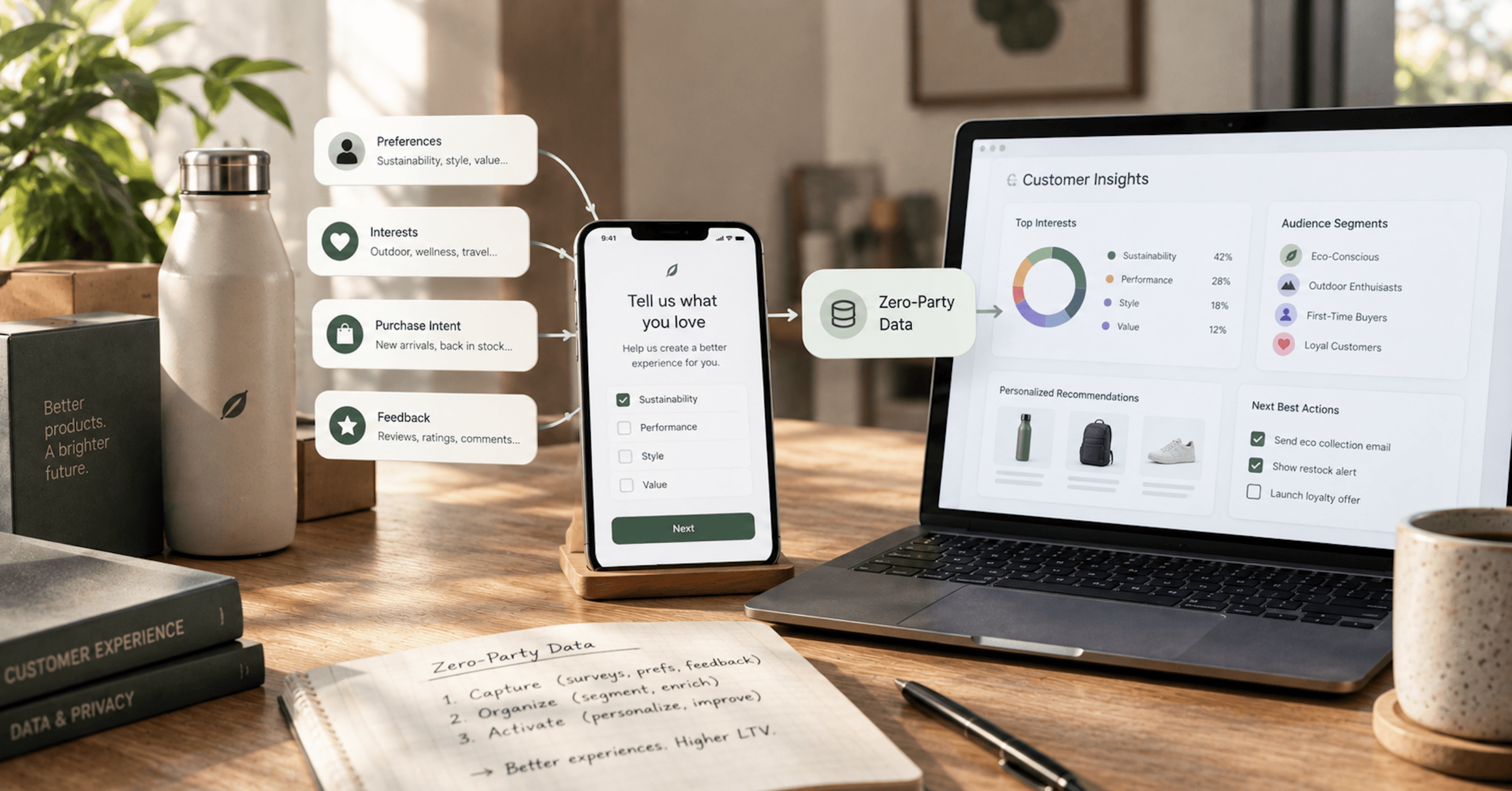
Zero-Party Data for DTC: How to Collect It and What to Do With It
Zero-party data isn’t a workaround for a cookie deadline that never came. It’s what your customers tell you on purpose, and the only version worth collecting is the answer that changes what they see next.
Not sure where the gap is? That's exactly what the Digital Marketing Growth Audit is for.
A free, no-obligation look at where your site can win more traffic and conversions, with a clear digital marketing roadmap to get there. Just a straight read on where your digital presence stands and where it's headed.