A Wix to Shopify migration is mostly a rebuild, with a data transfer inside it. Shopify’s Wix migration guide (opens in new tab) describes its Store Migration app as a way to import “your products and customers from Wix to your Shopify admin.” Everything else on a Wix site reaches Shopify through a reworked CSV, a third-party app, an API, or a rebuild by hand.
Wix narrows the list from its side. Its help center says blog posts, reviews and SEO tags can’t be exported, and that a Wix site has to run on Wix’s servers, so the design doesn’t come with you either. Every product, category and blog URL also takes a new shape on Shopify, which makes a redirect map part of the job.
We’re a Shopify agency, and every migration we do includes the Shopify store build. This is how we scope the move for a merchant: what first-party tools carry, what Wix won’t export, what changes shape, and the order to do the work in. Vendor limits change, so check the linked page before you plan around a number.
What a Wix to Shopify Migration Actually Moves
Shopify’s Wix guide runs 19 steps. The first 11 cover data and the last eight cover the theme, shipping, taxes, payments, test orders, staff, the domain and SEO. It names four kinds of data a Wix merchant might want to bring: products, customers, historical orders and reviews.
Does Shopify have a Wix import tool? Yes, with conditions. The Shopify Store Migration app (opens in new tab) is free, and Shopify’s Wix guide says it “is in early access, and is available only for certain stores and on desktop devices,” so your store may not be offered it.
Shopify limits the app’s scope in its own marketing. Its write-up of the app says it “is best for fast imports of specific objects; it’s not a full replatforming by itself,” and lists orders, collections, navigation menus, SEO data, blog posts, pages and reviews among the things it doesn’t import. The same write-up says URL redirects aren’t handled by the app.
The scorecard below is the short version. Each row is explained in the sections that follow.
| Data | Out of Wix | Into Shopify |
|---|---|---|
| Physical products | CSV export | Product CSV or the Store Migration app |
| Digital products | No export | Rebuild by hand |
| Categories | CSV export on the new categories version | Recreate as collections |
| Customers and contacts | CSV export, site owner only | Customer CSV or the Store Migration app |
| Customer passwords | Can’t be imported by CSV | New Shopify accounts can sign in with an emailed code |
| Orders | CSV export | Third-party app or API |
| Reviews | No export | Manual import through a reviews app |
| Blog posts | No export | Migration app, API, or copy by hand |
| SEO title tags and meta descriptions | No export | Product CSV has SEO columns; you supply the text |
| Site design and pages | Runs only on Wix | Rebuild in a Shopify theme |
| Gift cards | Sales CSV without transaction history | Migration apps or the GiftCard API |
| Loyalty points | CSV export | Loyalty app |
| Bookings and form submissions | CSV reports | Records only |
| Domain | Point it or transfer it out | Connect or transfer |
| Business email | Stays tied to the domain | Shopify doesn’t host email |
Moving Products From Wix to Shopify
Shopify’s guide says, “When migrating from Wix to Shopify, it’s recommended that you use a CSV to import your products.” The limits on each end count different things. Wix’s product export page (opens in new tab) says, “You can export up to 5,000 rows per CSV file,” and Shopify’s product import page (opens in new tab) says, “Your product CSV can’t exceed 15 MB.”
A row isn’t a product. Wix’s export and import article (opens in new tab) describes a file with one row for the product, one for each variant, and one for each image, GIF or video. Its own example, a product with one image and no options, “appears in the table with 2 rows.” A catalog with variants and several images per product reaches the row cap long before it reaches 5,000 products, so export in filtered batches, which Wix supports.
Check your column headers before you follow Shopify’s mapping. Shopify’s Wix guide maps columns named handleID, description, productOptionName1 and productOptionDescription1, then says, “Remove any other columns that aren’t mentioned in the table from your Wix export.” Wix’s current export uses handle, plainDescription, productOptionName[1] and productOptionChoices[1], with a fieldType column marking each row as PRODUCT, VARIANT or MEDIA.
Wix’s previous template (opens in new tab) uses handleId and productOptionDescription. Wix’s export and import article says it’s “in the process of releasing a brand-new product creation page,” so which file you get depends on which version your store runs.
Two instructions in that mapping deserve a second look against your own data. Shopify’s table says to “Convert kilograms to grams by multiplying the values by 1000,” so confirm which unit your Wix weights use before you multiply anything. Wix’s current file also carries modifier columns, which hold custom text fields and choices that aren’t variants. Following the remove-other-columns instruction deletes them, so list every product that uses a modifier and decide how it gets rebuilt on Shopify.
Options and variants have different ceilings. Shopify’s guide says of the Store Migration app, “Products can have a maximum of 3 options – products with more than 3 options won’t have their options imported. You can resolve this issue using third-party apps or metafields.”
Variants have more room: a Shopify changelog post (opens in new tab) dated October 15, 2025 raised the limit to 2,048 per product, up from 100. Shopify’s variants page (opens in new tab) adds that “Some third-party themes might not support more than 100 variants,” which is a theme question to settle during the build.
Shopify’s guide lists other ways a Wix product import goes wrong. Hidden Wix products import as unpublished, and “If a product is missing a variant option, then it won’t be imported successfully.” The app also flattens location pricing: “Prices by location aren’t supported – prices are automatically set to the product’s highest price.”
Images need a check of their own. Shopify’s product CSV reference (opens in new tab) says, “Your product images must be uploaded to a publicly accessible URL.” Wix’s current export fills its media column differently: “Media IDs are automatically added when exporting.” Keep the original image files, and after any import open the products and confirm every image arrived.
Two more product rules apply before you touch the file. Shopify warns that a CSV “sorted by a spreadsheet editor such as Microsoft Excel or Apple Numbers might cause your products to be removed from their relevant image links,” and that product imports “can’t be canceled once they begin, and you can’t view a history of past imports.” Test with a small file first. Digital products don’t export at all (“Exporting digital products is not currently supported,” per Wix), so they’re rebuilt on Shopify by hand.
Categories come out of Wix two ways. Wix’s categories article (opens in new tab) documents a CSV export and adds, “If your category creation page doesn’t have the Export / Import option, you have the previous version.” The current product export also lists each product’s categories in a categorySlugs column. Shopify says its app doesn’t import collections, so plan to recreate them and use those files as the record of which product belongs where.
Moving Customers From Wix to Shopify
Customers are the second data type Shopify’s tooling carries. Wix’s contact export page (opens in new tab) says, “You can export up to 50,000 site contacts at once to a CSV file,” and “only the site owner can export contacts.” On the Shopify side, the customer import page (opens in new tab) says, “You can only import customer CSV files that are 15 MB or smaller.”
The file has to match Shopify’s format exactly. Shopify’s Wix guide warns, “You can’t import a customer CSV that doesn’t match the Shopify headings. There is no data mapping support for customer CSV imports.” Its mapping table covers seven fields: first name, last name, email, address, city, country and phone, with country converted to an ISO country code.
Marketing consent is the field to carry by hand. Wix keeps email subscription status and SMS subscription status as contact fields, and Shopify’s customer CSV has yes/no columns for email, SMS and WhatsApp marketing. The seven-field mapping stops at phone, so confirm each contact’s status in Wix and set those columns yourself. Shopify’s own warning applies: “Only send marketing emails to customers who have opted in to receive email marketing from your business.”
Consent is also the data your email platform runs on, which is why we treat the list move as part of the Klaviyo email marketing setup and not only the store import. Clean the file before either import. Shopify says, “Any customers with duplicate email addresses or phone numbers are skipped during an import and aren’t tagged.”
A customer file doesn’t bring purchase history. Shopify states, “Order information can’t be imported using a customer CSV file,” and the total spent and total orders fields can’t be edited by CSV. Historical totals only appear in Shopify if the orders themselves are imported.
Orders Need a Third-Party App or the API
Wix exports orders. Its order export page (opens in new tab) offers a CSV with one row per item or one row per order, with purchase times recorded in UTC. Shopify’s migration hub (opens in new tab) lists three routes for historical orders: migration apps, the Order API and the Transaction API.
Shopify’s Wix guide puts it this way: “You can use third-party migration apps from the Shopify App Store to migrate your order history from Wix to Shopify.” It names four apps, and one of them has since left the store. The MigrationPro listing (opens in new tab) now reads, “This app is not currently available on the Shopify App Store.”
Sequence and notifications both matter here. Shopify’s hub says, “Import your products first, then your customers, and then any historical orders so that products and customers can be properly connected to the orders.” It also warns that staff set to receive new order notifications “will receive a new order email for each imported order,” so turn those notifications off before the import and back on after.
Shopify defines historical orders as “orders that have already been fulfilled.” Orders still open on launch day are a separate decision. Settle before cutover whether they’re fulfilled out of Wix or re-entered in Shopify.
What Wix Won't Export
Blog posts, reviews, SEO tags and the site itself have no Wix export. Each needs its own plan, and each has to be captured while the Wix site is still live.
Blog Posts, Reviews, and SEO Tags
Wix’s blog export page (opens in new tab) says, “Currently, it is not possible to export blog posts to other platforms.” Shopify’s migration hub lists migration apps, the Blog API and the Blog Article API as the ways to bring blog content in. In practice that means a third-party app, a developer, or copying each post by hand. If your site keeps content in Wix CMS collections instead of Wix Blog, those collections export as CSV (opens in new tab).
Reviews are closed from both sides. Wix’s reviews page (opens in new tab) says, “Currently, it’s not possible to export reviews from Wix Reviews.”
Shopify’s Wix guide agrees and offers one route: “You can’t export or migrate reviews from Wix to Shopify. However, you can import your reviews manually using a third-party app from the Shopify App Store.” It names Judge.me, Loox and Yotpo. With no export file, a manual import means collecting the review text, ratings and dates from your live product pages yourself.
SEO tags follow the same pattern. Wix’s SEO export page (opens in new tab) says, “Currently, it is not possible to export a list of the SEO tags you’ve added to your pages to a CSV file or other document type.” Shopify says its migration app doesn’t import SEO data. Shopify’s product CSV does accept them, in an SEO title column of up to 70 characters and an SEO description column of up to 320.
How much you have to capture depends on how much you customized. Per Wix’s product page SEO article (opens in new tab), the default title tag is the product name plus the site name and the default meta description is the product description. A store that never edited those has nothing custom to lose. A store that did needs a crawl of the live site that records every title tag and meta description before the Wix plan ends.
Blank fields fall back to the theme. Shopify’s SEO page (opens in new tab) says that without a custom title, “Your theme uses your shop name followed by the title of the content, or it uses the title of the content followed by your shop name.” Image alt text has a path: Wix’s current product file has a mediaAltText column, and Shopify’s product CSV has an image alt text column with a 512-character maximum. Shopify’s Wix mapping table covers neither, so add both by hand.
Structured data is regenerated on the new platform. Wix says it “automatically creates a Product preset markup” for each product page, and Shopify’s SEO overview (opens in new tab) says its themes “automatically include schema markup for products, which enables rich snippets in search results.” Shopify also generates canonical tags, the sitemap and robots.txt. Any custom markup you added on Wix has to be rebuilt in the Shopify theme.
The Design Gets Rebuilt in Every Wix to Shopify Migration
Can you transfer a Wix website to another platform? No. Wix’s page on exporting a site (opens in new tab) says, “Since Wix is a SaaS solution, your site must run on Wix’s servers.” The same page says “the content you build on Wix belongs to you,” so your copy and images are yours to reuse.
The templates, layouts and page structure stay behind.
That makes the storefront a new build in every case. Eight of the 19 steps in Shopify’s Wix guide are setup work with no data in them: theme, shipping, taxes, payments, test orders, staff, domain and SEO. Shopify also lists integrations and apps among the things its migration app doesn’t import, so every Wix app on your site needs a Shopify equivalent chosen and configured.
Product page templates, collection filtering and navigation are all decided again from scratch, and that’s the work our custom Shopify theme development team does on a migration. Members-only content is part of it too. Wix says its member list can’t be exported, so gated pages and roles are rebuilt on Shopify.
Gift Cards, Loyalty Points, Bookings, and Forms
Gift cards carry a liability, so reconcile them before you cancel Wix. Wix’s gift card page (opens in new tab) says sales export as a CSV and that “Transaction history is not included in this export.” Shopify’s migration hub lists migration apps and the GiftCard API as the routes for gift cards, certificates and store credits, and the giftCardCreate mutation (opens in new tab) accepts “an optional code.” Build a list of every outstanding card and its remaining balance while the Wix dashboard still shows each card’s remaining value.
The remaining Wix features leave records. Loyalty points export to CSV (opens in new tab), which gives you each customer’s balance to carry into a Shopify loyalty app. Wix Bookings exports reports (opens in new tab) of past and scheduled sessions with client contact details, and form submissions export (opens in new tab) with dates and times in UTC. Those files preserve the history, and the booking flow and the forms themselves are set up fresh on Shopify.
What Changes Shape When You Migrate From Wix to Shopify
Three things survive the move in a different form: URLs, customer accounts, and the domain with its email. Each one breaks if it’s treated as a straight copy.
Wix to Shopify URL Redirects
Every commerce and blog URL changes. Wix’s URL structure page (opens in new tab) puts products under /product-page/ and blog posts under /post/ by default, and its category SEO page (opens in new tab) gives the category pattern for the new categories version as “www.mysite/category/shirts.” Shopify uses /products/, /collections/, /pages/ and /blogs/.
| Wix default | Shopify |
|---|---|
/product-page/{slug} |
/products/{handle} |
/category/{slug} (new categories version) |
/collections/{handle} |
/post/{slug} |
/blogs/{blog-handle}/{article-handle} |
/{page-slug} |
/pages/{handle} |
/blog |
/blogs/{blog-handle} |
Don’t build the map from that table. Both Wix prefixes are editable in Wix’s SEO Settings, so your store may not use the defaults. The map has to start from a crawl or sitemap of the live site, with one row per URL and one destination per row. Shopify’s guide states the consequence of skipping it: “old links to specific pages likely won’t load for customers.”
Shopify’s URL redirects page (opens in new tab) sets the rules. A store can hold “a maximum of 100,000 URL redirects unless your store is on the Plus plan, which has a maximum of 20,000,000 URL redirects.” Redirects import and export by CSV, and “URL redirects start working immediately.” You can load them before launch, because Shopify’s Wix guide says “before you transfer your domain, you can set up URL redirects in advance.”
One rule matters for Wix sites. Shopify says, “You can’t redirect URLs that begin with the following prefixes: /apps, /application, /cart, /carts, /orders, /services, or /shop.” Wix page slugs are free-form, so a Wix page that lives at /shop or /services can’t be redirected on Shopify. Find those pages in your crawl and decide where their links and traffic should go before launch.
Will you lose rankings? Google’s site move documentation (opens in new tab) says to “Expect temporary fluctuation in site ranking during the move,” and that for medium-sized sites “it can take a few weeks or more for Google to gradually start showing the new URLs instead of the old ones.” LitExtension, which sells Wix migrations, says on its own product page that “SEO rankings cannot be guaranteed during any platform migration because search performance ultimately depends on search engines.”
Google’s page also describes what a good map looks like. It recommends “HTTP permanent redirects if possible, such as 301 and 308,” and Shopify’s redirects are 301s. It warns, “Don’t redirect many old URLs to one irrelevant single URL destination, such as the home page of the new site,” because that “might be treated as a soft 404 error.” It also says to “Keep the redirects for as long as possible, generally at least 1 year.”
Our SEO migration checklist covers the full site-move process on any platform, including the baseline to record before launch. If you’d rather hand off the map itself, redirect mapping is part of our SEO migration services.
Customer Accounts Don't Need Passwords
Do customers have to reset their passwords? Passwords can’t be imported by CSV, and on a new Shopify store they don’t need to be. Shopify’s customer import page says, “Because passwords are encrypted outside of Shopify, you can’t migrate customer passwords from another online store using a CSV.” Shopify’s customer accounts page (opens in new tab) describes sign-in once sign-in links are turned on: “They enter their email address and receive a one-time 6-digit verification code. A password isn’t required to sign in.”
The older, password-based account type isn’t an option for a new store. A Shopify changelog post (opens in new tab) dated February 26, 2026 says, “Legacy customer accounts are no longer available to new stores and existing stores not using it.” A Shopify store created for a migration today uses the new customer accounts.
Imported customers already have accounts. The customer accounts page says, “If your customer has a customer profile in your Shopify admin, then they already have an account. They can sign in with the email address associated with their customer profile to view their orders and account information.” The launch email to your customers can say that: sign in with the email you’ve always used.
Keep contacts and members apart when you plan this. Wix says its contact list can be exported and its member list can’t. The people are in the contacts file, so they become Shopify customer profiles. What doesn’t travel is membership itself: the login, the roles and the members-only access.
Domain and Email When Moving From Wix to Shopify
Can you keep your domain? Yes, and you have two ways to do it. For a domain registered at Wix, you can connect it, which leaves it registered there and points it at Shopify, or you can transfer the registration to Shopify. Shopify’s connect versus transfer page (opens in new tab) puts connecting at “Minutes to 48 hours” and “No additional cost from Shopify,” and transferring at “Up to 20 days” plus a “1-year domain renewal fee.”
Connecting is an A record and a CNAME change, plus a TXT record if Shopify asks for extra verification. Shopify’s Wix connection instructions (opens in new tab) have you replace the A record with one pointing to 23.227.38.65 and set the www CNAME to shops.myshopify.com. Wix’s external site article (opens in new tab) says DNS changes “can take up to 48 hours to fully update across the internet,” and that “It is not possible to change the name servers of a Wix domain.” Record edits are the only route while Wix holds the registration.
Transfers run into a lock. Shopify’s transfer page (opens in new tab) says you need to wait “60 days after registering your domain, transferring your domain to a different domain provider, or making changes to your registrar information.” Wix’s page on the lock (opens in new tab) says the limit “applies to both incoming (to Wix) and outgoing (away from Wix) transfers and cannot be changed by Wix,” and it comes from ICANN’s transfer policy (opens in new tab). Changing your contact details at Wix right before a transfer can start that clock.
Connect first and transfer later, if at all. Shopify gives the same advice: “If you’re not sure which option is right for you, start by connecting your domain. You can always transfer it to Shopify later.”
The cost of connecting is that the domain keeps renewing at Wix. Wix’s cancellation page (opens in new tab) says, “Canceling your site plan does not cancel any domain, business email, or app subscriptions that you have in your Wix account.”
Email needs a decision before any transfer. Wix’s business email overview (opens in new tab) says, “Your business email is connected to your domain, not your site,” and Shopify’s email hosting page (opens in new tab) says, “Email hosting isn’t provided on Shopify. You need to use a third-party email hosting service.”
Wix’s transfer article (opens in new tab) answers whether business email works after a transfer away: “No. You need to add the MX records again after the transfer in order for the business email to work.”
Copy every DNS record before a transfer starts. Shopify says a transferred domain’s A and CNAME records “are set to Shopify’s default domain records,” and tells you to make a copy of any additional records first. It also says, “You need to make sure that your email address doesn’t belong to the domain that you want to transfer,” because the authorization emails have to reach you while the domain is in motion.
The Order of Work for a Wix to Shopify Migration
The sequence follows from the constraints above. Anything Wix won’t export has to be captured while the site is live, the store has to exist before data goes into it, and redirects have to be in place before the domain points at Shopify.
- Crawl the live Wix site and record every URL, title tag and meta description. Save blog posts, reviews and original image files.
- Export products, categories, contacts, orders, gift card sales, loyalty points and form submissions from Wix.
- Build the Shopify store: theme, collections, pages, navigation and apps.
- Import products, then customers, then historical orders, with staff order notifications off for the order import.
- Rebuild what has no import: blog posts, reviews, SEO tags, alt text, gift card balances and digital products.
- Build the redirect map from the crawl, load it into Shopify, and resolve any Wix URL that sits on a reserved Shopify prefix.
- Set up shipping, taxes and payments, then place test orders.
- Connect the domain, confirm the redirects resolve, and tell customers how sign-in works.
- Keep the Wix plan until everything is verified, then cancel the site plan, the domain and the business email as separate decisions.
Freeze changes on the Wix store before you export. Shopify’s migration checklist recommends a change freeze in the run-up to a migration: no new products, no price edits, no active discount codes and no promotions that modify product data, with the final export taken inside that window.
Google’s site move guidance says, “Time your move to coincide with lower traffic, if possible.”
The last step has a safety margin built in. Wix’s cancellation page answers whether canceling removes your work: “No, canceling your plan does not delete your site content.” The site reverts to a free Wix address, so the old store stays available for reference after launch.
Wix to Shopify Migration Tools and Who Does the Rebuild
Third-party migration apps cover some of what Shopify’s own app leaves out. Each one sells the service it describes, so read these as vendor claims.
LitExtension’s product page lists products, categories, customers and orders as what it moves from Wix, with 301 redirects as an added option. Its App Store listing (opens in new tab) is priced as “Free to install. Additional charges may apply.”
Shopify’s Wix guide names two more apps. Wix Data Import by Cart2Cart (opens in new tab) claims it “transfers products, customers, orders, images, and more without downtime.” EZ Importer (opens in new tab) is an order importer that says it lets you “bulk import your orders and draft orders to Shopify via CSV.”
Matrixify is the general-purpose option. Its App Store listing (opens in new tab) covers collections, orders, pages, blogs and redirects among other data, and names Magento, WooCommerce, BigCommerce, Lightspeed and WordPress as migration sources. Matrixify’s pricing page (opens in new tab) lists a free demo tier and paid plans.
None of these tools builds the store. The theme, the collections, the navigation, the app stack, the redirect decisions and the content Wix won’t export are all work a person does. Shopify’s guide lists hiring a Shopify Partner as one of its five migration methods.
That’s the work our Wix to Shopify migration service covers: the Shopify build, the data move and the redirect map as one project. Stores coming from other platforms start at our Shopify migration services page, and if you’re comparing source platforms, we’ve written the same kind of breakdown for a WooCommerce to Shopify migration.
Start Your Wix to Shopify Migration With a Free Audit
Shopify’s tools carry products and customers. The redirect map, the title tags and the marketing consent columns are yours to capture from the live Wix site before the move.
Get a free migration audit before you export a single file. We’ll look at your Wix store, show you what moves, what has to be rebuilt, and which URLs need a plan, and give you a roadmap you can act on. Start with a free Wix to Shopify migration audit.

What Shopify Collective Is, and Whether It Fits Your Store
Shopify Collective is dropshipping between Shopify stores in the same country. Here’s how an order moves, what the supplier and the retailer each control, and the three conditions that rule a store out.

Shopify Metafields and Metaobjects: Custom Data Without a Rebuild
Most of the custom data you want on a product page fits in Shopify metafields and metaobjects. Here are the current limits, and the points where theme code or an app takes over.
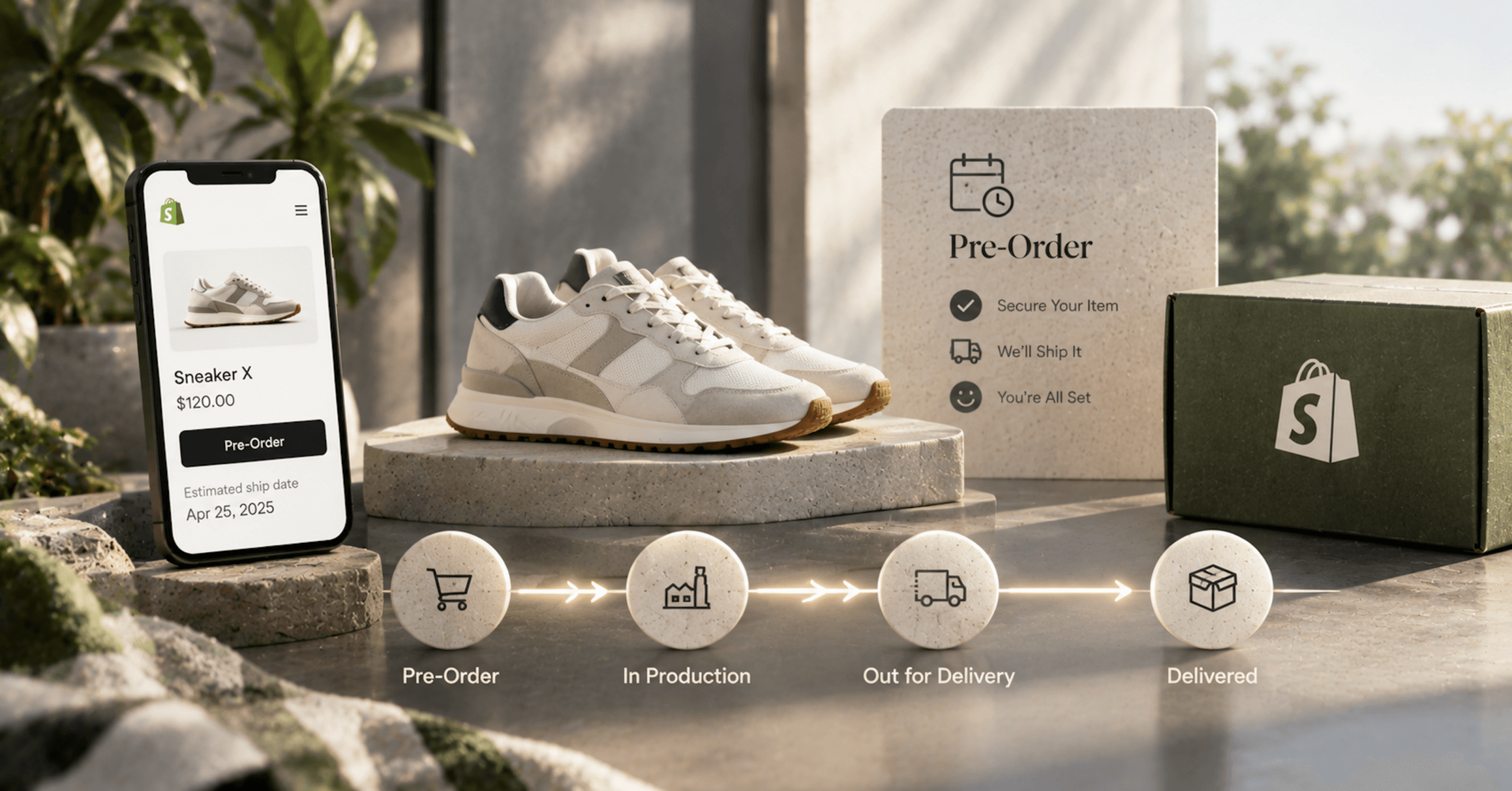
Shopify Preorder Setup: The Decisions That Protect the Customer Experience
A Shopify preorder needs an App Store app and gives up Shop Pay, Apple Pay and Google Pay at checkout. Here are the setup decisions that shape what your customer sees.
Not sure where the gap is? That's exactly what the Digital Marketing Growth Audit is for.
A free, no-obligation look at where your site can win more traffic and conversions, with a clear digital marketing roadmap to get there. Just a straight read on where your digital presence stands and where it's headed.